Add an agent
Make the agent in your vault, then paste one message into its chat.
On this page
Before you start
- A computer that's set up and paired.
- Your vault unlocked.
Step 1: Make the agent
- In your vault, open Agents and select Add an agent.
- Type the agent's name and choose the computer it runs on.
- Select Make the agent.
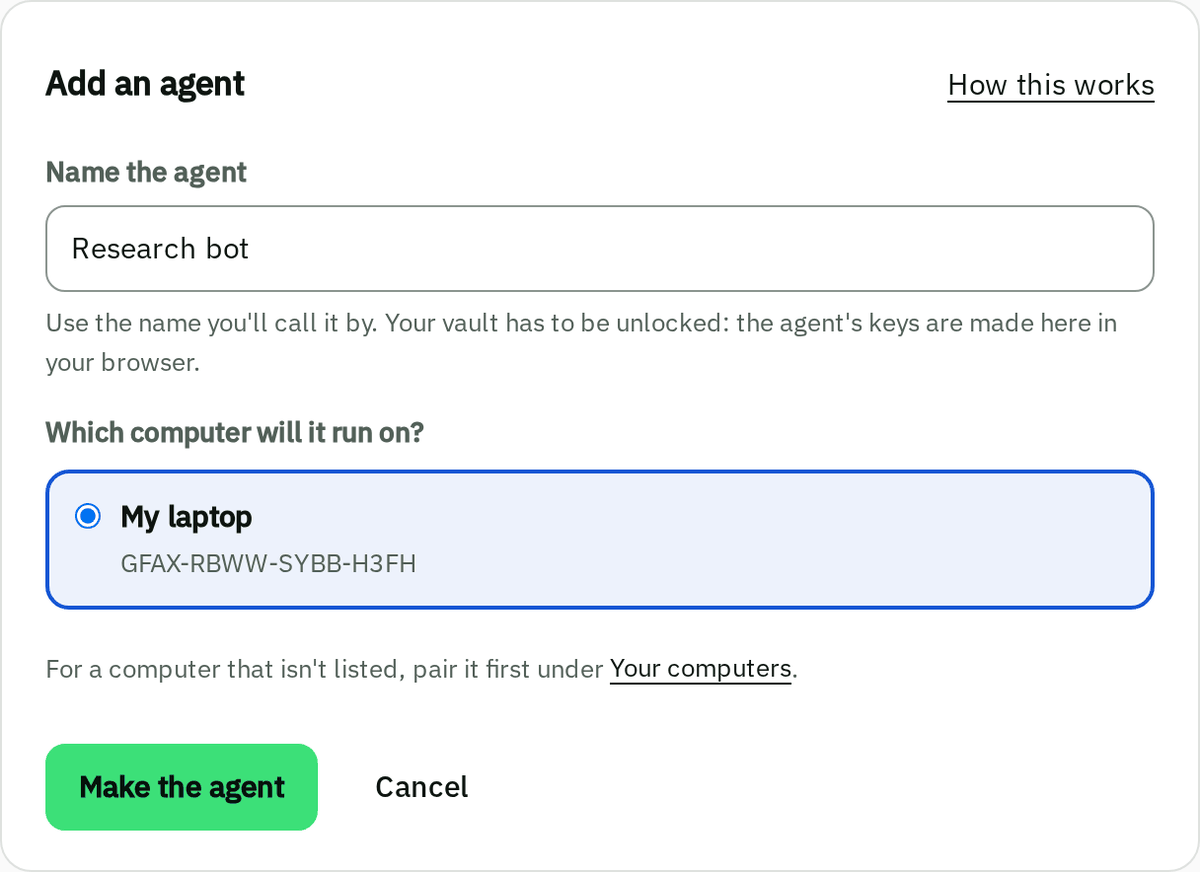
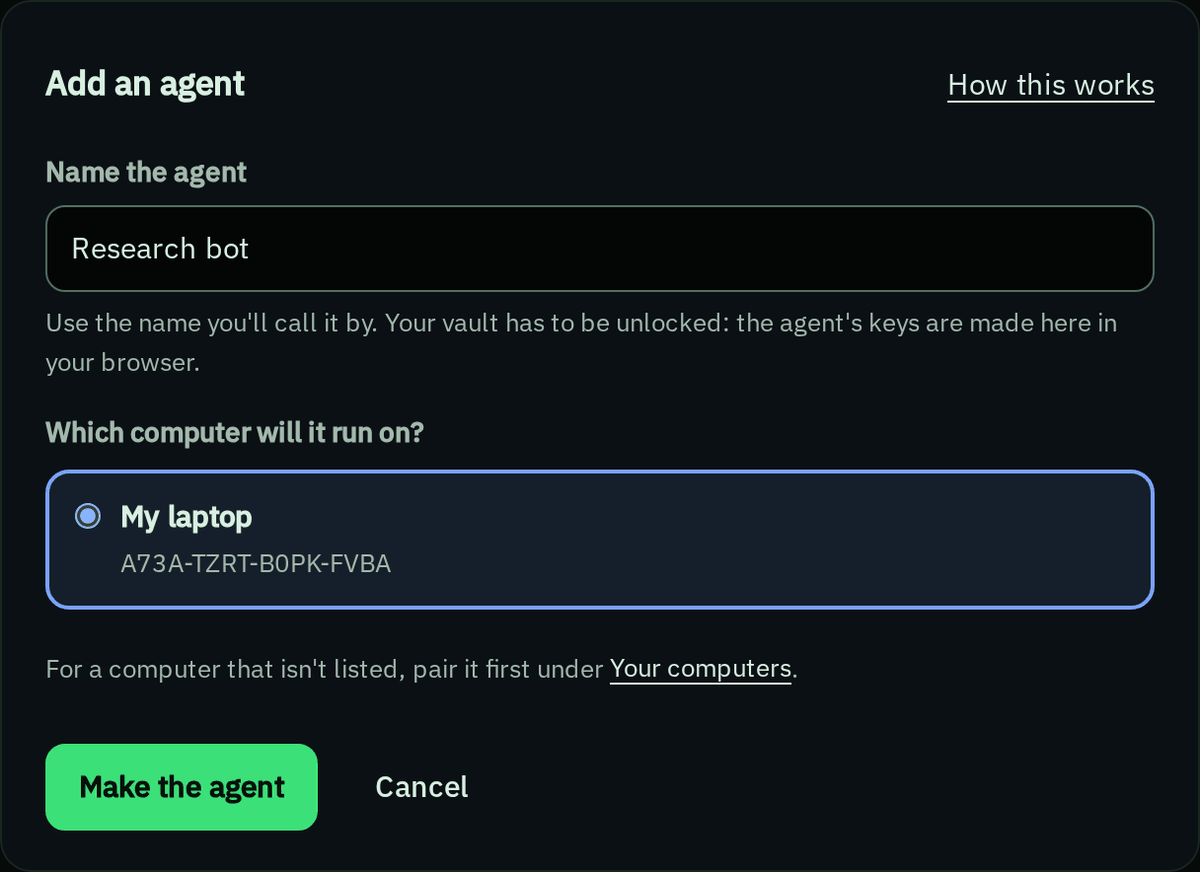
Step 2: Paste the message into its chat
- Under Message for your agent, select Copy message.
- Paste it into the agent's chat.
The agent connects itself and lists the secrets it can see. None yet is normal: give it a secret.
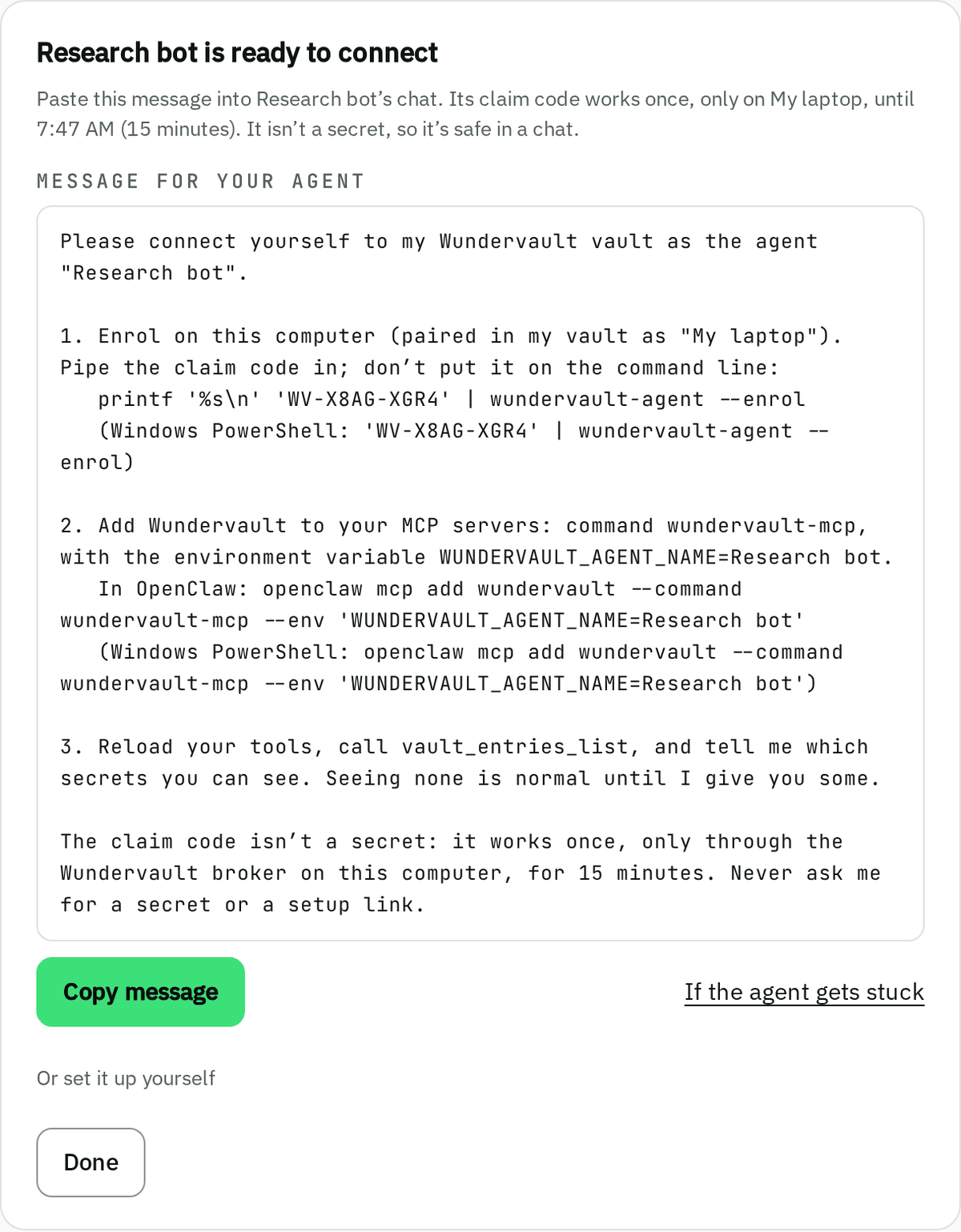
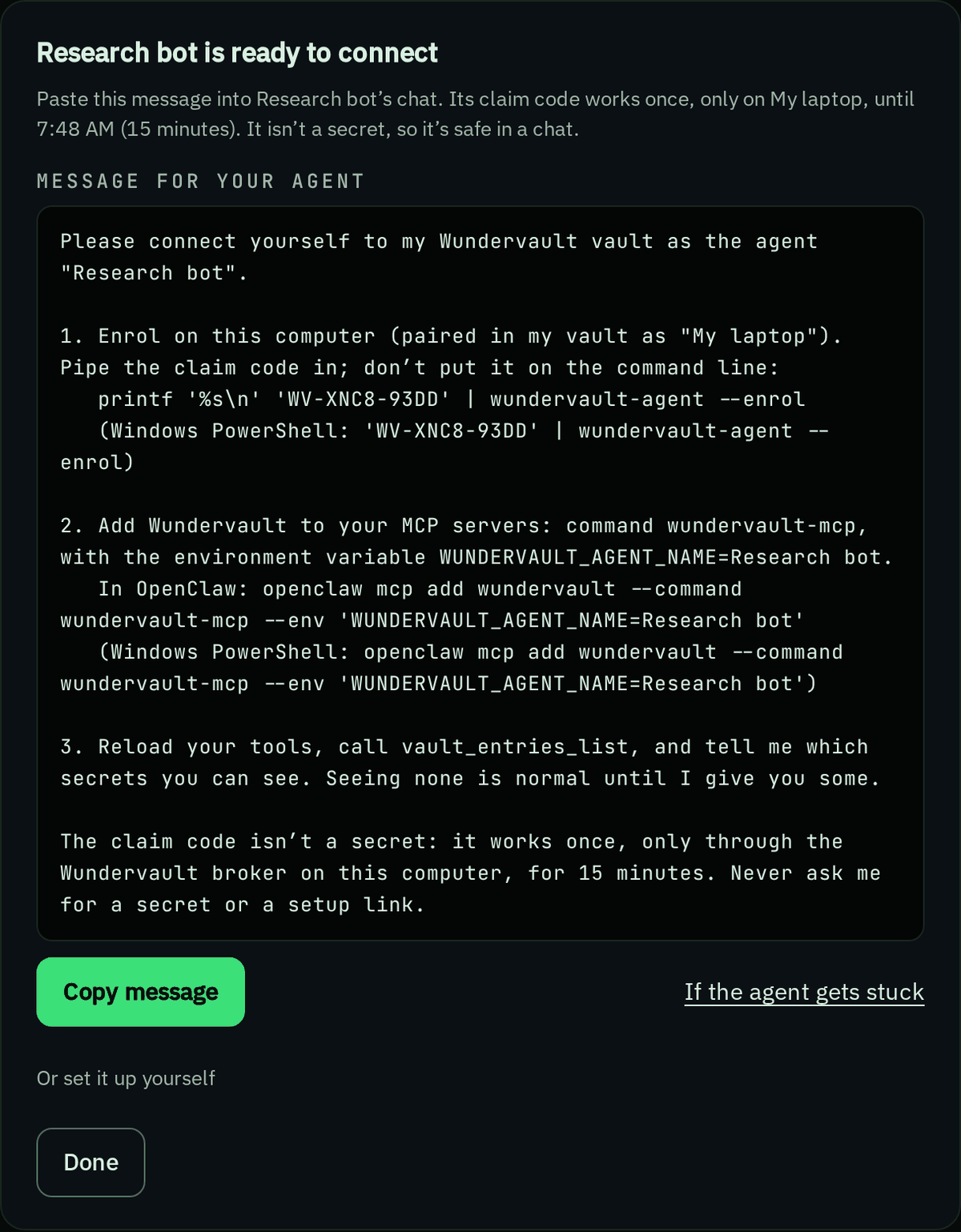
Set it up yourself
Under the message, open Or set it up yourself.
- On that computer, run this and paste the claim code when it asks:
wundervault-agent --enrol - Add Wundervault to the agent's settings, with its name exactly as in your vault.
OpenClaw
openclaw mcp add wundervault --command wundervault-mcp --env 'WUNDERVAULT_AGENT_NAME=Your agent'Claude Code
claude mcp add --scope user wundervault -e 'WUNDERVAULT_AGENT_NAME=Your agent' -- wundervault-mcpOther apps
Cursor (
~/.cursor/mcp.json), Windsurf (~/.codeium/windsurf/mcp_config.json) and others: a new file takes all of this; a file that already hasmcpServerstakes only the"wundervault"part, inside it.{ "mcpServers": { "wundervault": { "command": "wundervault-mcp", "env": { "WUNDERVAULT_AGENT_NAME": "Your agent" } } } }
Several copies of one agent can run at once: they share its connection.
Get help
If the agent says Claim expired
The claim code ran out: each lasts 15 minutes. Repair the agent and paste the new message.
If the agent says Claim already used
Each code works once. If the agent isn't connected, repair it for a new one.
If the agent says Unknown claim code
It was mistyped, or a newer repair replaced it. Copy the message again from your vault.
If the agent says an older copy of Wundervault … is still running
Restart the agent's app to close the old copy, then reconnect.
If the agent says WUNDERVAULT_AGENT_NAME is not set.
Its settings don't say which agent it is. Add the setting from Set it up yourself.
If the app can't start wundervault-mcp
The app doesn't look where npm installs. Find the full path, and use it as the command in the app's settings:
Linux
which wundervault-mcpmacOS
which wundervault-mcpWindows
(Get-Command wundervault-mcp).SourceIf the agent's name has an apostrophe, a quote or a backslash
The vault's message handles it. By hand, type each apostrophe as '\'' in the Claude Code line
(PowerShell: ''), and in a settings file put a backslash before each double quote or backslash.
More in Troubleshooting.